
Introduction
Below are the steps needed to setup PiHole with Unifi UDM Pro.
The sofware versions involved are:
- Unifi UDM Pro: Network v6.5.55
- Raspberry PI 4: PiHole v5.8.1
TL;DR
The main actions to note are:
- Setup networks for devices that you require in Unifi.
- Ensure the networks have no content filtering in Unifi.
- Setup appropriate network/firewall rules to allow access to DNS.
- Install and enable PiHole
Configuration
PiHole
I have a raspberry Pi 4 attached to my home network.
- Configure & install raspbery Pi on your device: https://www.raspberrypi.com/software/ make sure SSH is enabled.
- Install PiHole https://docs.pi-hole.net/main/basic-install/
- If you have several networks/subnets set up you'll need to Permit all origins
- Go to settings -> DNS -> Interface Settings
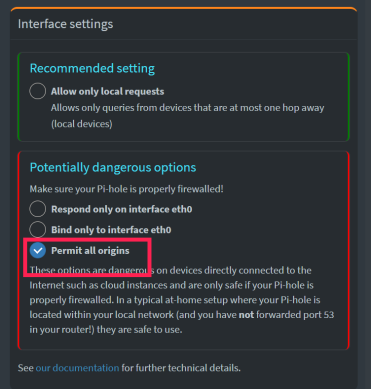
- Save those changes.
Unifi
I have setup 4 networks with the following CIDRs:
Unifi network CIDRs

You need to setup firewall rules to control traffic on your network but in order to allow DNS traffic to your PiHole you'll need the following:
- Rule Type: LAN in
- Description: ALLOW ALL to DNS
- Action: Accept
- IPv4 Protocol: TCP and UDP
Source Settings
- Source Type: Address/Port Group
- IPv4 Address Group: Any
- IPv4 Port Group: Any
Destination Settings
- Destination Type: Address/Port Group
- IPv4 Protocol: DNS Server -> Create a group with the IP of the DNS Server with PiHole.
- Port Group: DNS Port -> Create a group with the port number 53.
Save those settings.
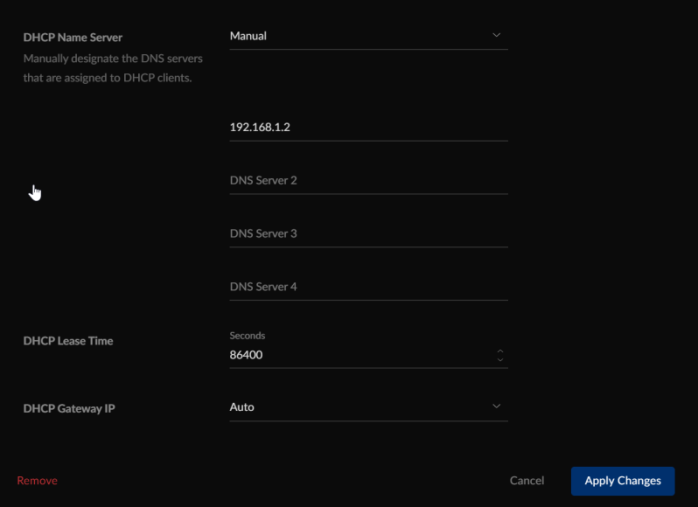
Next you'll need to set the DNS IP for all the networks that you've setup as follows:
Go to each network and set the DNS IP to the DNS Server (in my case it's 192.168.1.2):
Make sure that no content filtering settings have been set as this will interfere with DNS queries.
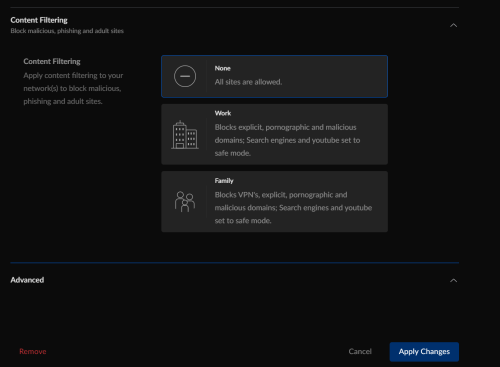
Save those settings.